How to Split MBOX Into Separate Files & Individual Messages?


MBOX is a file format commonly used to store email messages in a single mailbox file. Also, this file can be accessed by various email clients like Mozilla Thunderbird, Apple mail, Eudora, Opera mail and many more. Many times due to the large size, an MBOX file may become corrupt or slow down the associated email client. It also makes it hard to search for particular items within a large file. Due to these reasons, it’s recommended to split MBOX file. By breaking an MBOX into smaller files, you can easily organize the emails and overcome size-related problems. We will tell you the best possible way to divide MBOX file into smaller files with this article and try out the solutions.
Reasons Why Cut MBOX file into Smaller Files
Once your MBOX file reaches full size, it will definitely have many of the same problems as Thunderbird or Apple Mail. We have given some issues below:
- Emails will no longer be accepted by the mail server.
- It is possible that Windows will not allow Mozilla Thunderbird to open.
- Any type of bug can make MBOX files easy targets.
- Every time when you open an account, It will show an error of exceeding mailbox size in the application
- Emails in the Inbox folder cannot be opened by the recipient end.
- New files will not occupy the storage drive.
After seeing all the reasons. Let us know about the benefits of dividing MBOX files into smaller files.
Benefits of Dividing MBOX file into Separate Parts
- Easy handling and management of large MBOX files.
- Improved performance and operations like searching and loading.
- Targeted access to specific email messages or subsets of data.
- Enhanced compatibility with email clients or other applications.
- Simplify the migration of email data.
- Flexible backup and recovery options by cutting MBOX files into smaller files
- Reduced risk of data loss or corruption.
By reading all the sections given above you get to know the information about this. Here comes the main query on how to cut MBOX files into smaller portions. So, In this article we will be focusing on three methods to split MBOX file.
How to Manually Split MBOX File Into Separate Files?
Here, we have three methods to cut MBOX files:
- Using a Text editor
- Using an Email Client
- Using Command-line
Let us take a look at the solutions one by one.
#1 Use a Text Editor to Break Mailbox Files
You can view the contents of MBOX file using a simple text editor like Notepad, Notepad++, Edit Pad, EmEditor, UltraEdit, etc. The steps on how to use a text editor for this task is as follows:
- Create a new folder on your desktop and name it accordingly.
- Copy the large MBOX file that you want to split and paste it into this new folder (Do this twice).
- Now, you have two copies of the MBOX file.
- Right-click on the first copy and open it with a text editor.
- You will notice a set pattern at the starting of each email message [each new message starts with the “From” word].


- Find this pattern and go to the start of a message at the approximate middle of the page.
- Delete everything after the “From” word at the starting of the new message in the middle of the page.
- Note down what message is last in the file after the delete operation.
- Save and open the second copy with the text editor.
- Here, start from the very first message and delete everything to the last message you noted down in the previous copy.
- Save the file.
Now, you have two separate MBOX files created by splitting an MBOX file using a text editor.
#2 Use an Email Client to Break Mailbox Files
The previous method to split MBOX file into separate files is a bit technical and may not be everyone’s cup of tea. So, we will be explaining another method that is very easy to perform, although a bit long. For this method, you need to download Mozilla Thunderbird, a free email client on your system.
Let’s start with the steps:
- Run Mozilla Thunderbird.
- Configure an account (Gmail, Yahoo, Outlook.com, etc.) to simply start the application.
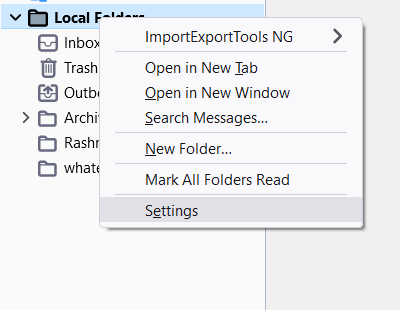
- Right-click on the Local Folders at the left panel of the email client and select the Settings
- Copy the path present in the Local directory.
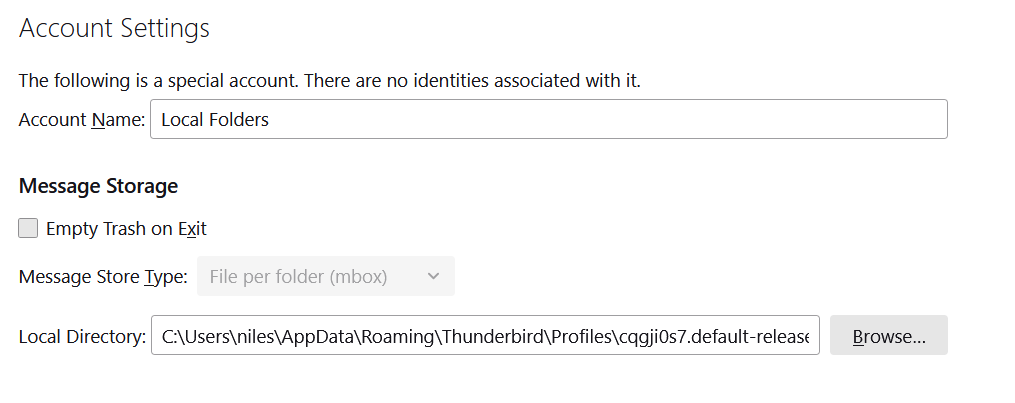
- Open this path in your system.
- Copy the MBOX file that you wish to split in this location.
- Now, restart Thunderbird.
- The MBOX file is present under the Local Folders.
- Right-click on Local Folders >> New Folder and name it accordingly (do it twice).
- Now, select half of the email messages from the MBOX file folder and right-click >> Move To >> Local Folders >> first new folder.
- Next, select the remaining email messages from the MBOX file folder and right-click >> Move To >> Local Folders >> second new folder.
- Once moved, go to the local directory path on your system to see two new MBOX files (file with no extension) having the same name as your two new folders.
With this method, you can split your MBOX file into as many smaller MBOX files as you want. Although it requires the help of an external email client, at least it enables you to choose the email messages to keep in the new MBOX files.
#3 Use Command-line Method to Cut MBOX Files
Here are the steps to Split MBOX file into smaller chunks using command-line method:
- You can launch your command prompt or the terminal in your system.
- Now use the ‘cd’ command to navigate directly to the location where MBOX files are stored.
- Run the command line ‘split’ command to split the MBOX file into smaller chunks. For ex- split -1 2000 your_mbox_File.mbox_chunk
- By using this command line you can split the MBOX files into smaller files with each containing 2000 lines of emails. You can also adjust the value according to your need.
- After this command completes you can check multiple separate files named as ‘mbox chunks’ etc. in the same directory where your MBOX files are stored.
Time Efficient Tech to Split MBOX file
If you want to divide MBOX files into smaller parts , you can directly use the MBOX to PST Converter software. During the conversion process, it provides a split PST option that splits the source MBOX into smaller files and converts them to PST for Outlook purposes. There is no size limitation and it supports more than 20 email clients supporting MBOX files.
Frequently Asked Questions
Q) What is the MBOX file size Restriction?
MBOX files are 4.7GB in size.
Q) Does splitting an MBOX into separate files delete any emails?
No. Splitting is a non-destructive process—it creates smaller, independent MBOX files while keeping all original messages intact.
Conclusion
Splitting large MBOX files is an effective way to enhance email performance, simplify management, and prevent mailbox errors. Whether you choose manual options like Thunderbird or a professional tool, make sure you keep data integrity intact. Well-organized and smaller MBOX files not only boost speed but also make email management simpler and safer.